 Swish Notch
How to use Swish Notch
Your first minute
- Open it. Click the basketball in the menu bar and choose Play Basketball, or click the thin orange edge under the notch. The court drops from the notch.
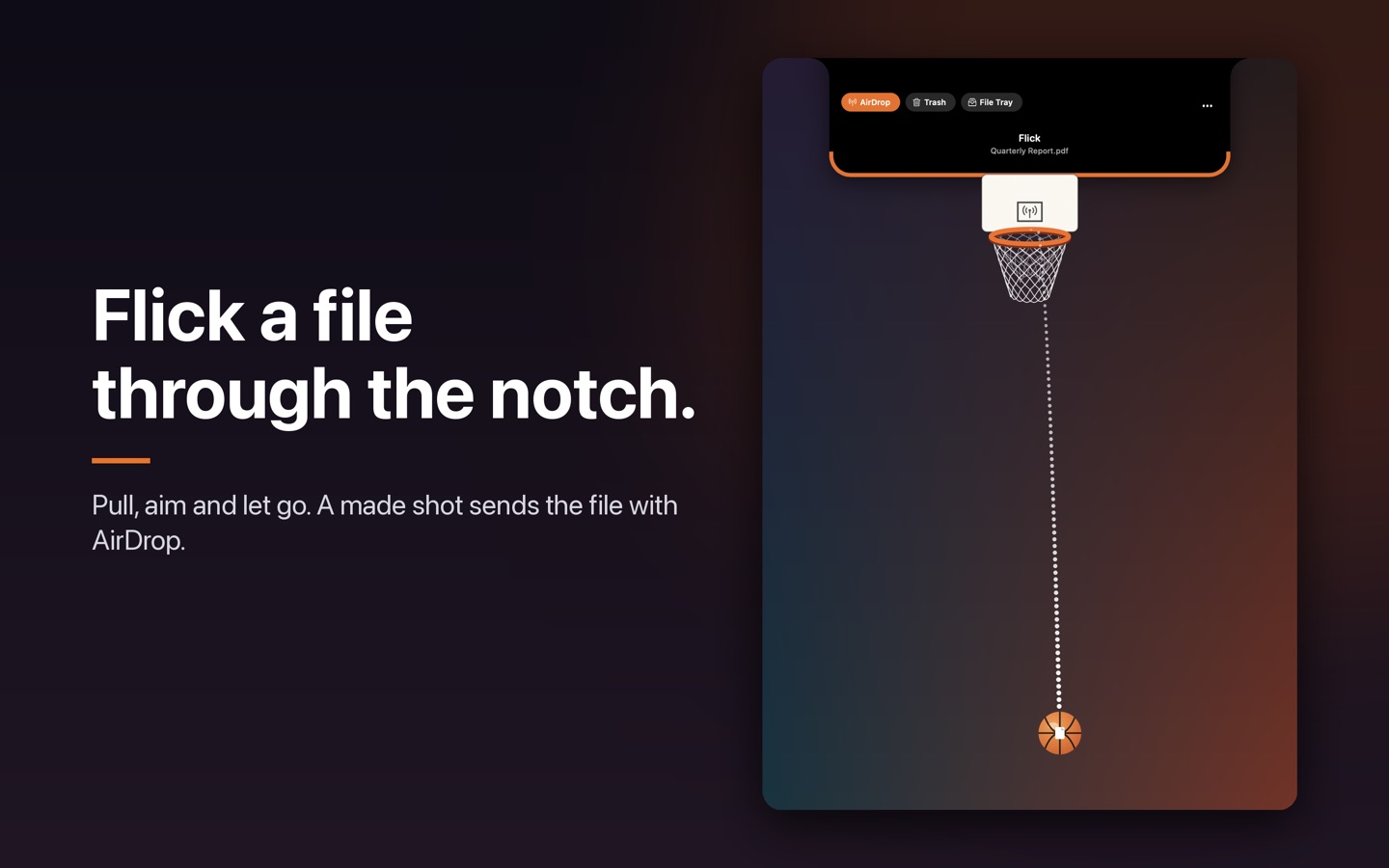
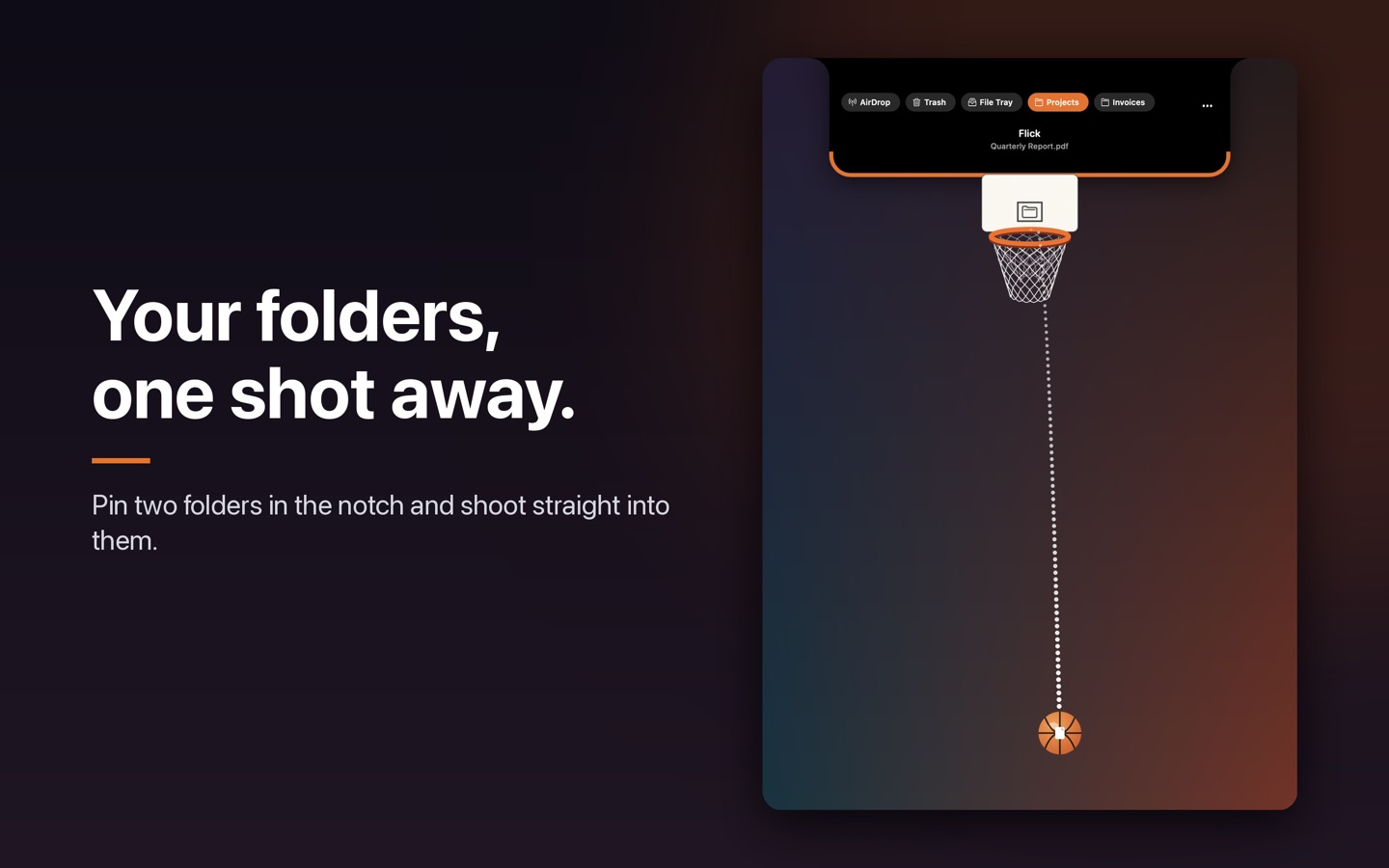
- Pick where files go. The buttons in the notch are the destinations: AirDrop, Trash, File Tray, and up to two folders you pin.
- Bring a file in. Drag it from Finder onto a destination button, or click Choose Files, or copy a file in Finder and press ⌘V.
- Send it. Dropping on a button sends it at once. A file on the ball waits for you: click Send (or press Return), or pull the ball back and let go for the shot.
- Leave. Press Esc or click anywhere outside the notch.
The ways to bring a file in
| Do this | What happens |
|---|---|
| Drag a file onto AirDrop, Trash, File Tray or a folder button | It goes there straight away. No ball, no shot. |
| Drag a file onto the notch, or the menu-bar ball | It lands on the ball, ready to send or shoot. |
| Click Choose Files or press ⌘O | A file window opens where you last chose. Folders work too. |
| Copy in Finder, then ⌘V | The copied files land on the ball. |
| Right-click in Finder, Throw in Swish | The selection lands on the ball. |
| Throw the Latest File (⌃⌥⌘L) | Your newest download or screenshot lands on the ball. |
Files, folders, and packages such as Pages and Keynote documents all move as one item. Only symbolic links stay put.
Where files go
- AirDrop opens Apple's picker. The original stays on your Mac.
- Trash moves the file to the Trash. Put Back in the ⋯ menu restores it for about ten seconds.
- File Tray keeps a copy for a day. The original does not move.
- Folders file the original in a folder you choose. Choose one from ⋯ then Choose a Folder. The first two become buttons, and the Folders menu there pins, unpins and removes them.
Use it without the game
The game is optional. You never have to shoot. Drop files on a button, or put one on the ball and click Send. If you would rather not see a hoop at all, open the menu-bar menu, then Settings, then turn on Simple Mode (No Game). The hoop and ball disappear, and any file you bring in goes straight to the destination that is selected.
The File Tray
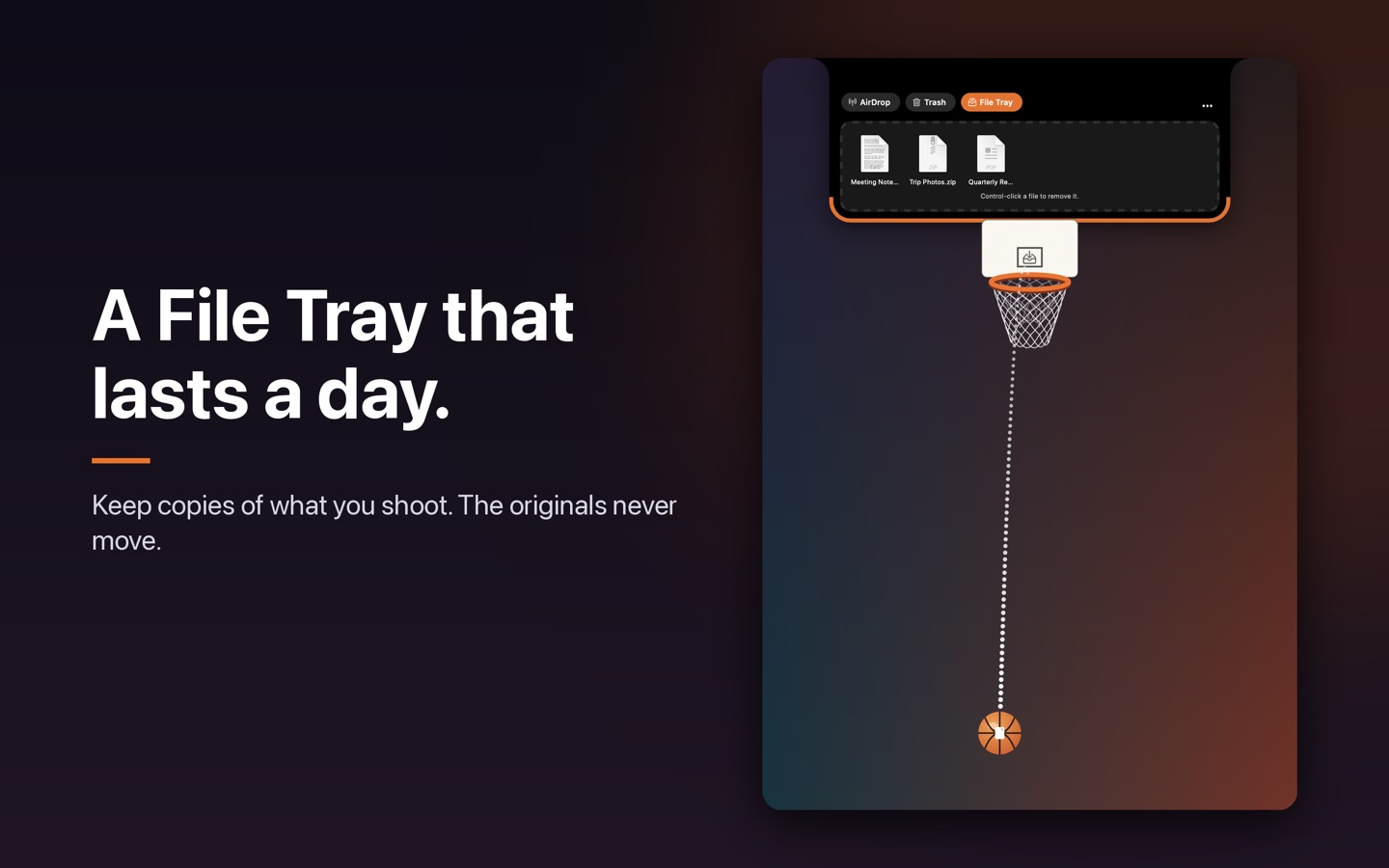
Open it with the File Tray button. Copies stay for a day.
- Take one out: drag it into Finder, Mail, a browser upload, or any app that takes files. It is a copy, so it stays in the tray unless Remove From Tray After Dragging Out is on in Settings.
- Take them all: hold Shift as you drag.
- No dragging: click a copy to open it. Control-click or right-click for Show in Finder, Copy (then paste anywhere) and Remove.
Playing the shot
- Slide the ball sideways, then pull any way and let go. A dotted line shows the shot through up to three bounces.
- Hold ⌥ before you pull for auto-aim: pull up for power and the shot aims itself.
- Bank it off the screen edges for named trick shots. Easy Mode in the ⋯ menu slows the ball and softens the rim.
- A file only moves when the shot goes in. A miss leaves it exactly where it was.
- Optional: Show Streaks and Milestones and Your Stats in the menu keep score. Everything stays on your Mac.
Closing and re-opening
- Esc, the Close item in the ⋯ menu, or a click on the empty desktop, another app or the menu bar all close the court. Turn the click off under Settings if you prefer.
- While the court is open, only the ball and the notch take clicks. Everything else on the screen is still yours.
- To open it again, click the thin orange edge under the notch, or the menu-bar ball. The optional shortcut ⌃⌥⌘S opens it from anywhere.
Automation
swish://open,swish://closeandswish://latestwork from Shortcuts (Open URLs), Raycast, Stream Deck and scripts. They never move a file or choose a destination for you.- Swish can fire ConfettiYeti on a milestone if that app is installed.
Accessibility
- Every control in the notch works with VoiceOver and Switch Control, including the destinations, Send and the tray.
- Return sends the file in hand without playing. ⌘O and ⌘V bring files in from the keyboard.
- Reduce Motion, Reduce Transparency, Increase Contrast and Low Power Mode are all respected.
If something looks wrong
- The court looks stuck: menu-bar menu, then Reset the Court. Your settings and File Tray are untouched.
- It opens on the wrong display: the court follows your pointer. Click the notch of the display you want.
- AirDrop shows nothing: AirDrop uses Apple's own picker, so it needs Wi-Fi and Bluetooth on and the other device nearby and awake.
- Anything else: menu-bar menu, then Send Feedback. It starts an email with your Swish and macOS versions and display setup, and nothing personal.
Private
Swish Notch is sandboxed, has no network access, and collects no data. It only touches files you give it. Privacy policy.
Swish Notch is on the Mac App Store. Get it there.